![logo-white.svg]](https://www.celus.io/hubfs/logo-white.svg)
| 📝Contents |
|
Project Creation with CELUS Design Assistant Start Fast with CELUS Reference Projects: Build from proven designs |
Starting a project in the CELUS Design Platform is now faster and more intuitive. Upon logging into Design Studio, the CELUS Design Assistant is ready to help you begin. This AI-powered tool interprets natural language prompts to generate a system-level architecture, allowing you to initiate your design just by describing what it should do.
Prefer a reference? Clicking New Project from the Welcome Screen brings you directly to the All Reference Projects page. From there, you can choose from curated, functional reference designs to spark ideas and accelerate your structure.
In both cases, you land directly on the Design Canvas—the central space for shaping your project. Here, you can continue developing your system by:
Or
Use the Design Assistant to update or expand the architecture.
You can now:
-
Start projects instantly after login
-
Describe functionality in natural language
-
Select a reference project aligned with your design goals
-
Land on the canvas and immediately begin customizing your architecture
-
Combine AI support with manual precision as the project evolves
This new flow reduces initial friction while maintaining full control and flexibility throughout your design process.
Project Creation with CELUS Design Assistant
The CELUS Design Assistant is an AI-powered feature within the CELUS Design Platform that transforms functional design intent—whether described in text or captured in an image—into a structured project architecture.
Whether you're typing a prompt like “5V power supply with USB-C”, or uploading a sketch, block diagram, or hand-annotated schematic, the Assistant interprets your input and builds a modular system architecture using reusable design blocks (CUBOs) and validated components.
 Design Assistant at Welcome Screen
Available at project start or anytime via the Design Canvas, it helps engineers move quickly from idea to implementation:
-
Parses written prompts to generate functional block diagrams
-
Interprets uploaded image files (digital or hand-drawn)
-
Suggests technically appropriate CUBOs for each block
-
Retains design context across sessions and supports multilingual input
By lowering the barrier from concept to prototype, the Design Assistant supports both novice and experienced engineers in streamlining architectural design.
🔎 Explore more: Accelerating Electronics Design in Canvas using Design Assistant
Start Fast with CELUS Reference Projects: Build from Proven Designs
The Reference Projects section on the CELUS Design Platform Welcome Screen showcases a curated selection of high-quality, recommended projects. Each project represents a fully validated design reference that demonstrates best practices in architecture, configuration, and CUBO implementation.
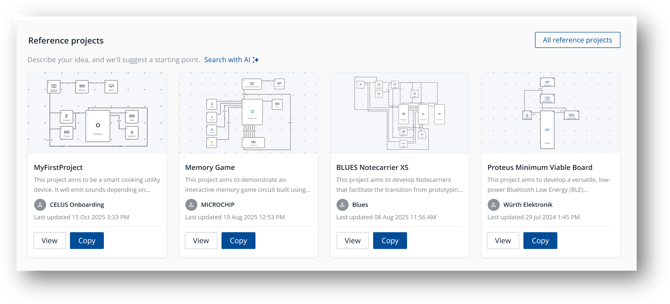
Copy your preferred project
Another way to access Reference Projects is upon clicking New Project button from the Welcome Screen, users are taken to the All Reference Projects page.
Describe the project or search with associated keywords
You can interact with Reference Projects in two ways:
-
View a project: Opens in read-only mode for architecture review
-
Copy a project: Duplicates the design into your workspace for editing
When users select Copy Project, the system creates a new project instance that inherits all the solutions, configurations, and functional structures from the original. This gives engineers a ready-to-use, pre-configured base that can be customized to fit their design intent, significantly reducing setup time and ensuring functional consistency.
Importantly, Locked CUBOs within a Reference Project remain unchanged when copied. These CUBOs preserve the validated configurations and parameters from the original project, maintaining design integrity and preventing accidental modification of verified content.
Copying a Reference Project Inheriting Solutions and Configurations
This workflow allows engineers to begin from a trusted, production-grade foundation, accelerating design iterations while ensuring technical accuracy across reused solutions.
Start Project from Scratch
If you want full control from the beginning, you can still start a project from scratch. Simply skip selection of Reference Projects and begin with an empty canvas by clicking on New Project button. From here, add your own Functional Blocks and define your system architecture exactly as you want it.
Once your project is created, you can:
-
Add Functional Blocks manually.
-
Resolve your design to get CUBO suggestions.
-
Customize the structure freely.
You remain in charge of your design from day one.
Start a Project from Scratch
Start using CELUS Design Platform and stay tuned for new updates