![logo-white.svg]](https://www.celus.io/hubfs/logo-white.svg)
Overview
The CELUS Design Assistant is an AI-powered tool embedded directly within the CELUS Design Platform, designed to accelerate electronics development by interpreting natural language prompts. It allows engineers to begin projects from abstract design intent,whether described via text or uploaded as an image/sketch,and transition into structured, modular architecture in seconds.
By integrating closely with CELUS' reusable design block system (CUBOs) and Components, the Design Assistant serves both novice and expert engineers by simplifying early-stage architectural decisions and enabling faster transitions from idea to implementation.
1. What Is the Design Assistant?
The Design Assistant interprets textual or visual input (such as PDF schematics or block sketches) and transforms it into structured functional diagrams. Accessible from the Welcome Page or directly within the Design Canvas, it supports both ideation and iterative development by:
-
Parsing textual prompts to generate system-level architectures
-
Interpreting uploaded sketches to create draft block diagrams
-
Suggesting functionally appropriate CUBOs for each module
-
Retaining session context and supporting multilingual prompts
The assistant dramatically reduces time to first prototype and lowers barriers for both new and experienced users.
Accessed via the Welcome Screen or directly on the Design Canvas, the tool assists at every stage—from ideation to refinement.
a) From Welcome screen

Design Assistant at Welcome Screen
b) From Design Canvas
Click on Design Assistant Button
2. How to interact with Design Assistant
a) Open-Ended Prompts
Use for high-level ideation. Example: “Design a smart home controller.”
The system proposes a baseline architecture using common functions like sensors,microcontrollers, wireless modules, etc.
Design Assistant: Open-Ended Prompt
b) Specific Prompts
Useful for iterative edits or targeted additions. Example: “Add a Bluetooth module and connect it to the microcontroller.”
Design Assistant will place the appropriate blocks with the matching connections.
Design Assistant: Specific Prompts
c) Visual Input Support
PDFs or image files of block diagrams are processed to auto-generate a structured project base. Alternatively, you can add a text prompt alongside the image to clarify your intent or provide additional instructions.
Convert a Project from Image to Canvas
3. Core Capabilities
a) Design Automation
-
Add/remove/replace functional blocks
-
Modify or create signal connections
-
Auto-generate layouts from image/PDF input
-
Handle sequential prompts and compound instructions
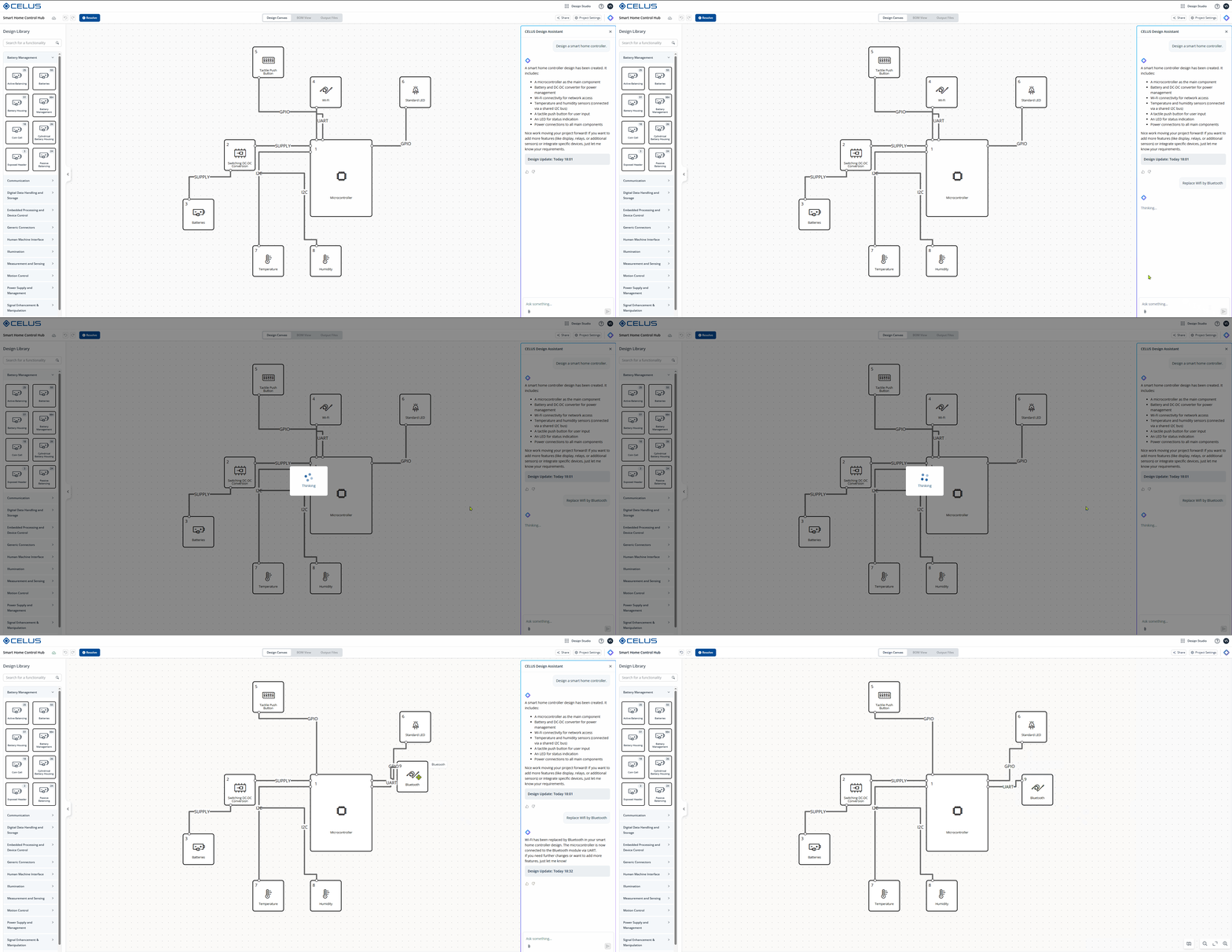 Design Assistant: Update Functional Block
b) Distinctive Features
-
Context-aware memory across user sessions
-
Multilingual support
-
Real-time control of the Canvas
-
Deep integration with CUBO suggestions
Example Interaction:
-
"Add LED to the microcontroller."
-
"Add one more."
Design Assistant recognizes “one more” as a continuation and connects an additional LED.
4. Creating Complex Projects with Design Assistant
Design Assistant supports both exploratory and structured design flows. A complex system design typically begins with an open-ended prompt, followed by iterative refinement using specific prompts.
Sample Workflow:
-
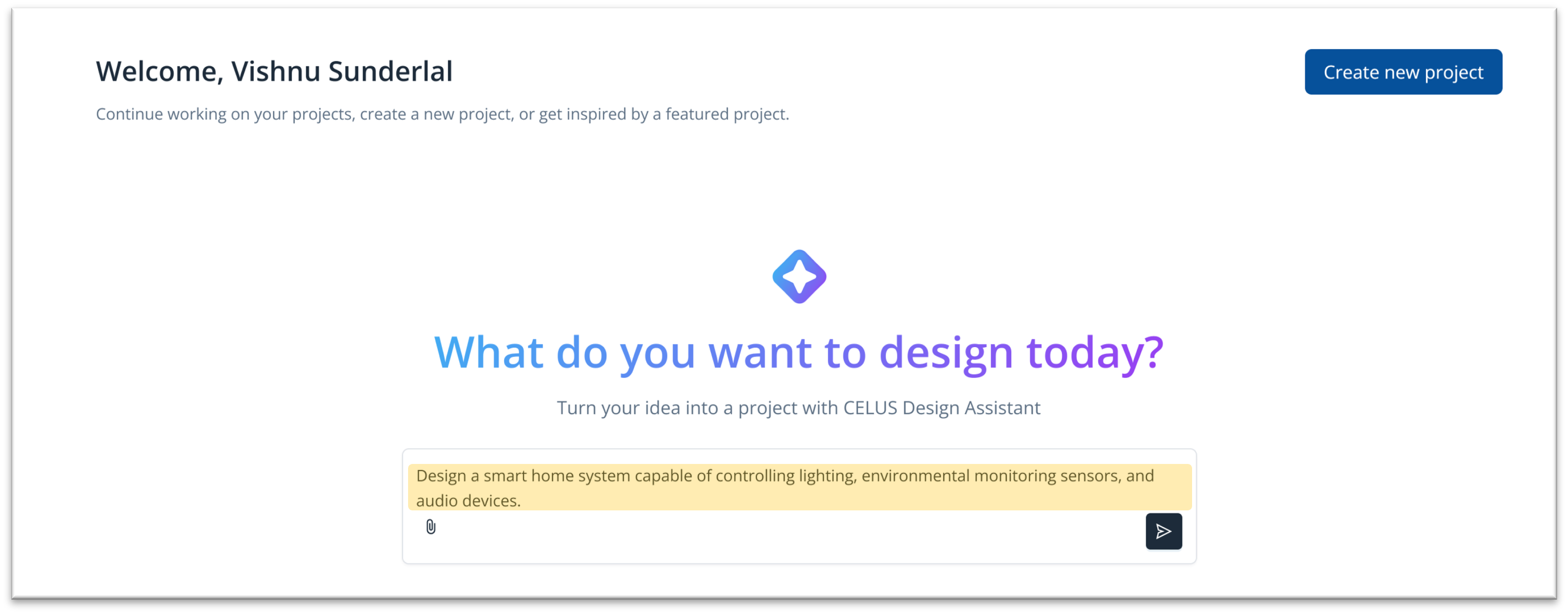
Open-Ended Prompt: Start by describing a broad system objective.
Example: "Design a smart home system capable of controlling lighting, environmental monitoring sensors, and audio devices."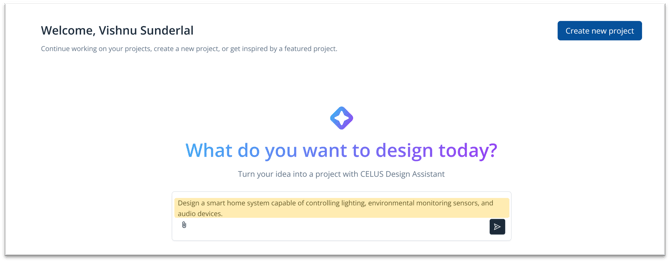
Open-Ended Prompt provided in Design Assistant
-
Design Assistant Output: The platform generates an initial functional block diagram, including controllers, lighting interfaces, sensor blocks, and audio modules.
-
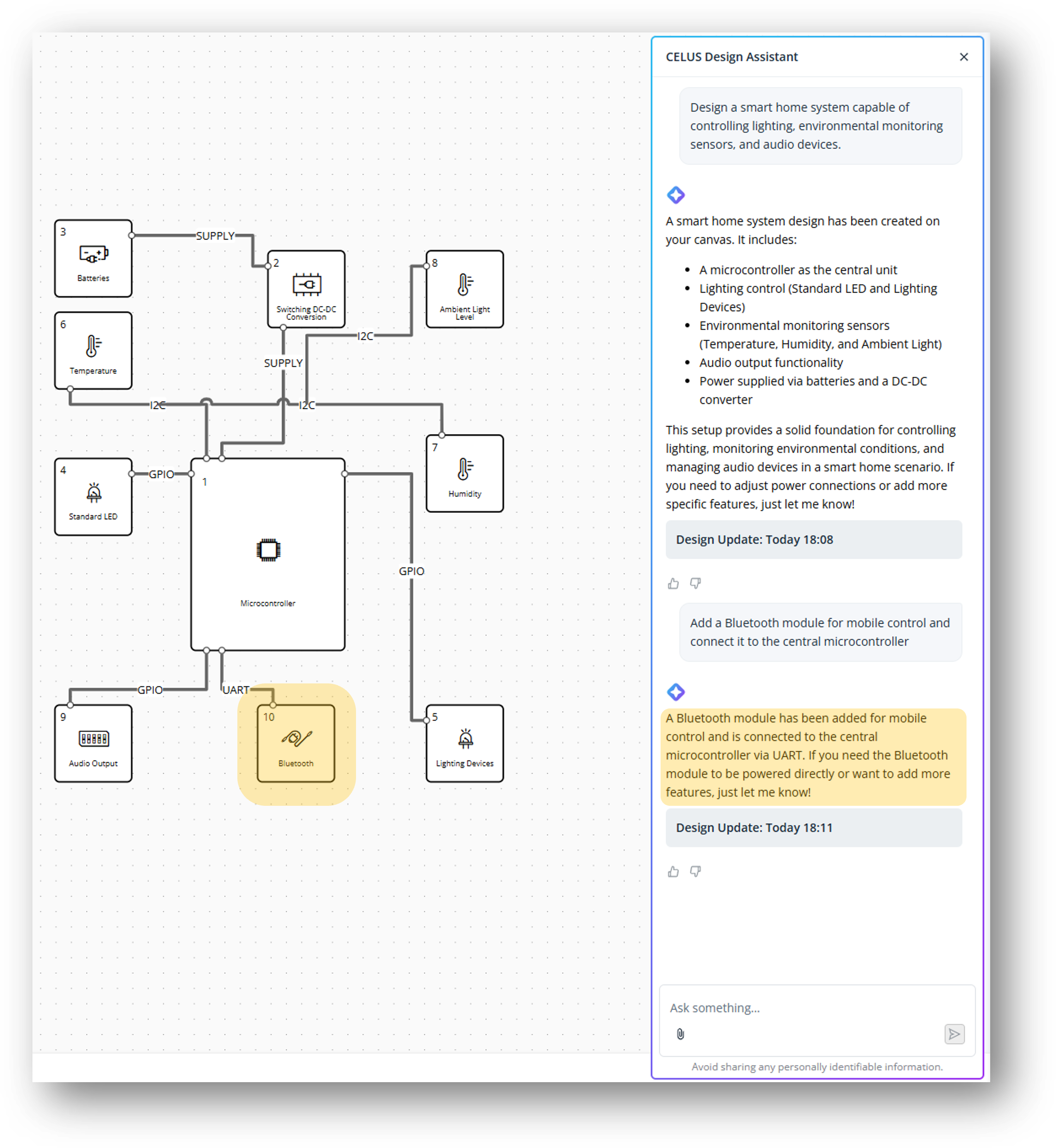
Specific Prompt: Refine or expand.
Example: "Add a Bluetooth module for mobile control and connect it to the central microcontroller."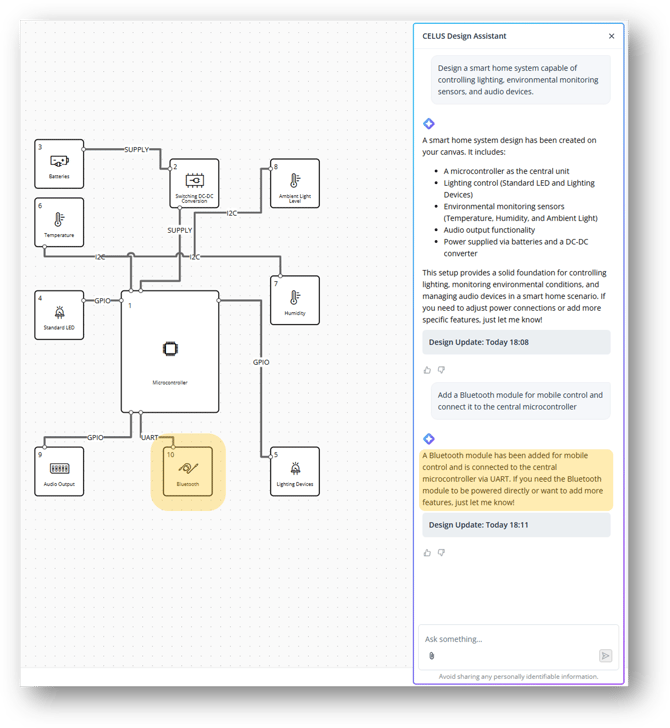
Specific Prompt: Add Functionality Blocks -
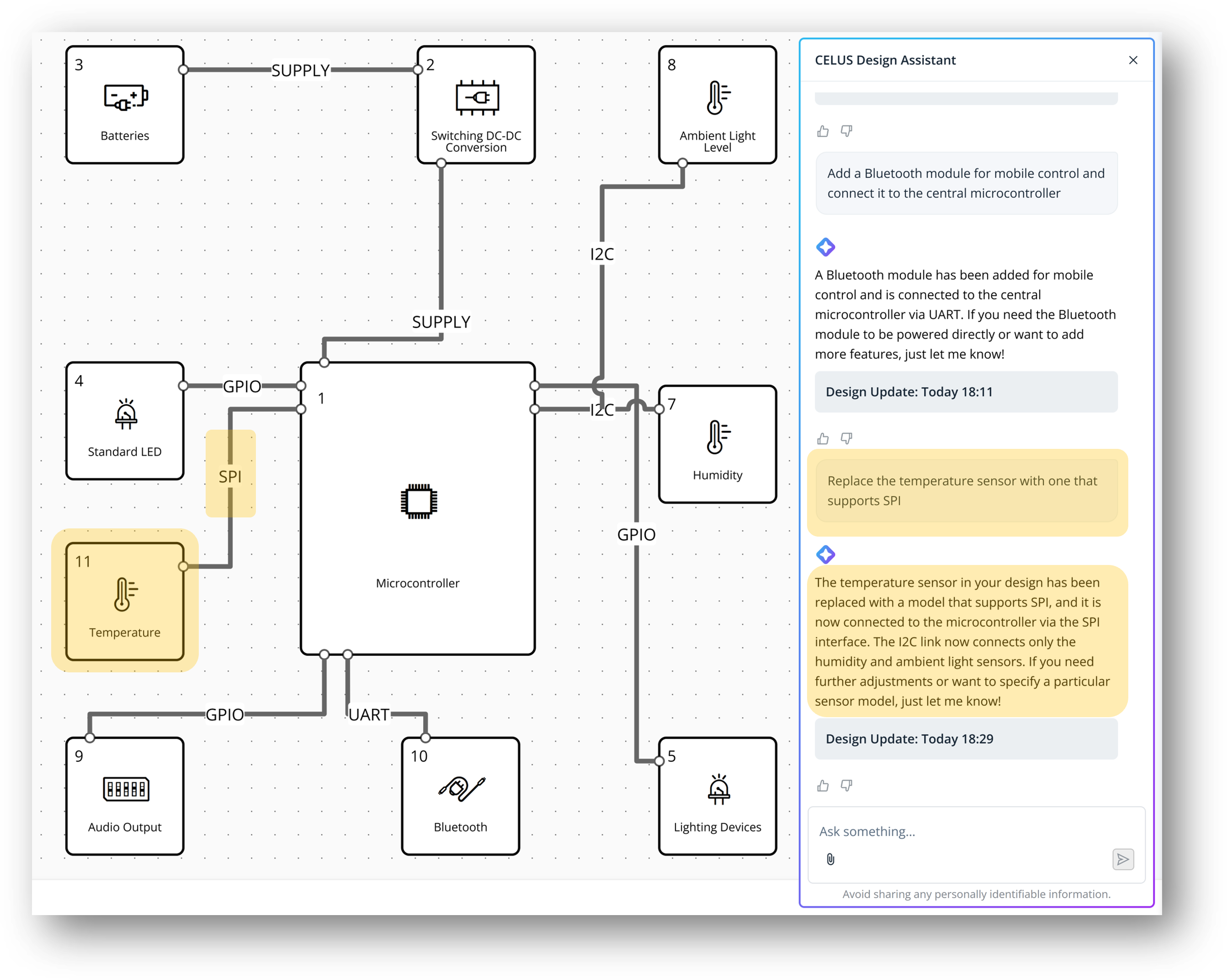
Iterative Expansion: Continue prompting with targeted actions. Examples:
-
"Replace the temperature sensor with one that supports I2C."
-
"Show compatible audio amplifiers for this system."
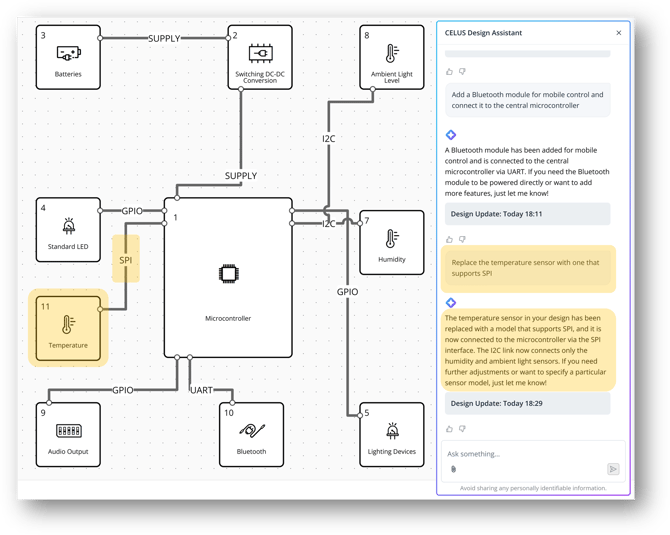
Iterative Prompt: Add or Replace a Port or Functionalities
-
-
Visual Confirmation and Adjustment: Review the Canvas to visually confirm and adjust the proposed design. Use drag-and-drop or manual tools for further edits. For detailed guidance on configuring your project in Design Canvas, please refer to the dedicated configuration page.
-
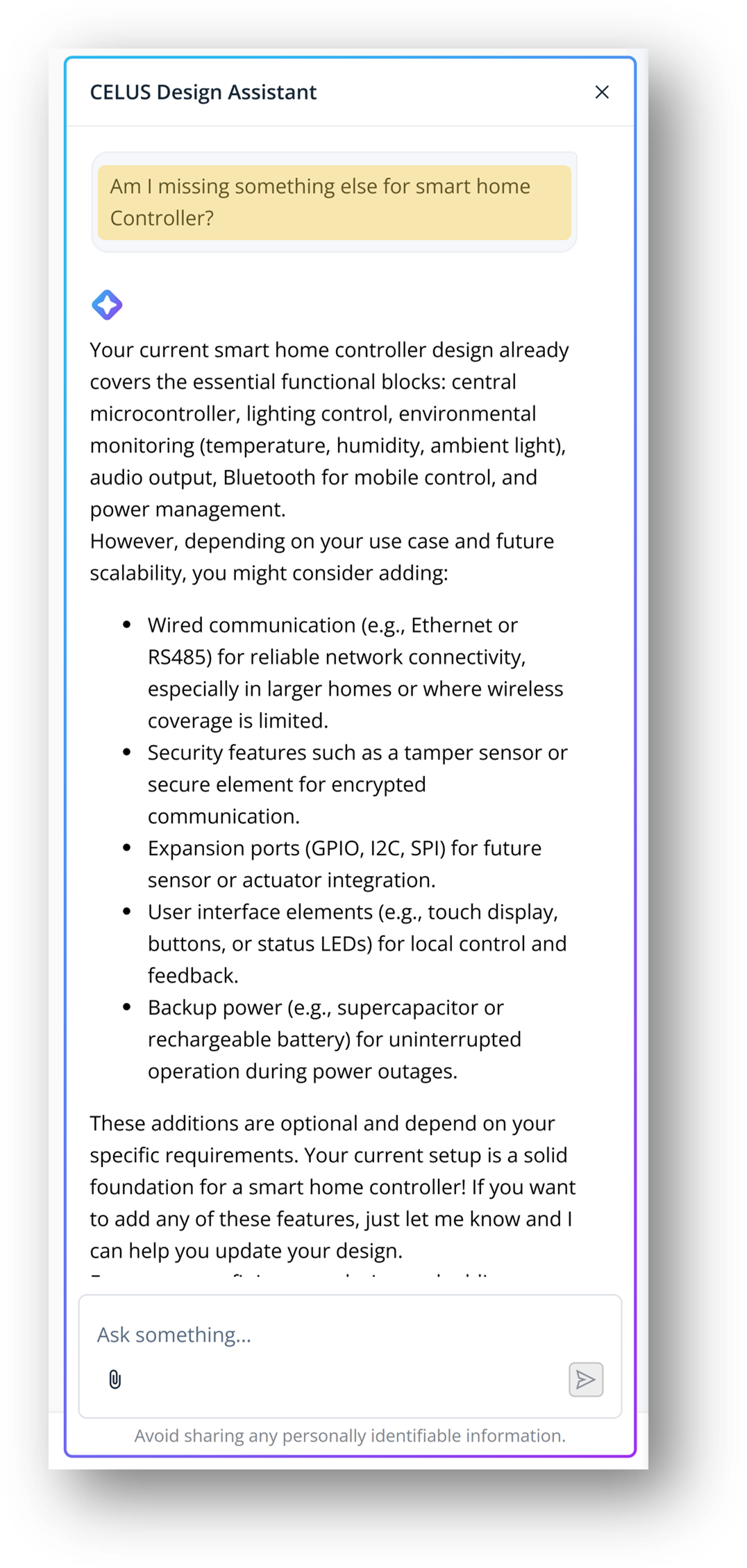
Coverage Check and System Validation: Once you believe the system is complete, you can validate it contextually by asking:
"Am I missing something else for smart home systems?"
The Design Assistant will then analyze your current project structure and suggest additional components or functional blocks to enhance coverage and completeness.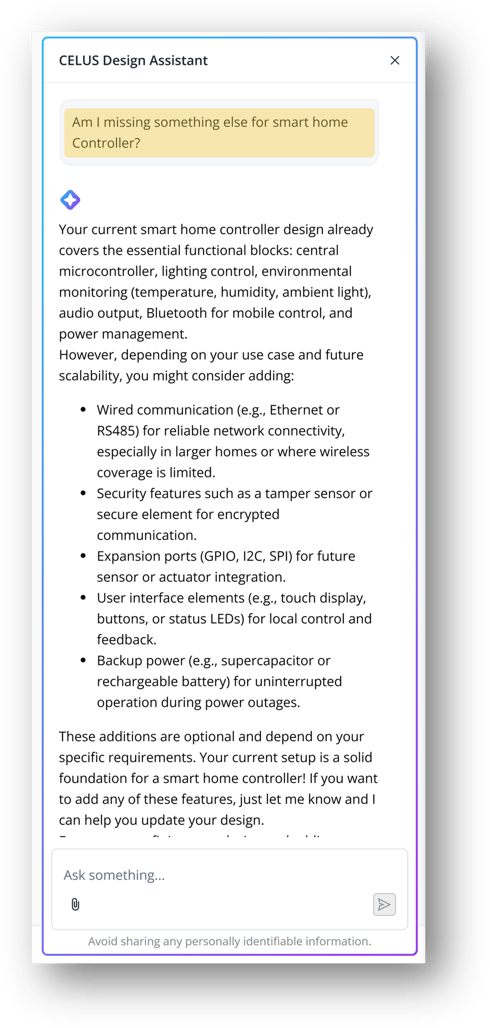 System Validation and expansion of Project
📑 Constraints of Design Assistant
-
Max text length at a time is limited to 20.000 characters
-
Max file size for upload is 20 MB
-
One file per text is supported
-
Only PDF and Images are supported for upload
-
The Design Assistant can make changes directly on the Canvas. On other pages—such as CUBO Results, BOM View, and Output Files, it provides guided instructions when requested.
Start using CELUS Design Platform and stay tuned for new updates