Documentation
Platform Workflow
This article explains how to explore and select CUBOs within the CELUS Design Platform by viewing a curated list of matching solutions for each functional block in a project, reviewing their technical details and schematics, and applying filters to refine choices. It walks through navigating the CUBO Results interface, using features like the AI‑powered Design Assistant, and locking a selected CUBO to fix it in your design workflow. The page guides engineers on making informed and flexible design decisions by comparing and choosing the most appropriate CUBO for their hardware architecture.
📝Contents
CUBO Results
Back to Design Canvas
Functional Blocks Panel
CUBO™ Filters
CUBO™ Overview
Select the CUBO™
Design Assistant: Conversational Access to CUBO Solutions
Lock the CUBO™
Exploring CUBOs in Detail
After completing a project, whether by using a Template or starting from scratch, you can assign a CUBO™ to a Functional Block. To do this, either right-click the Functional Block and select Select CUBO, or simply click on the Functional Block, which will open the Selected CUBO panel on the right. In this panel, choose See more CUBO options. Using either method will open the CUBO Result page.

Find CUBO by Right-click or selecting see more CUBO Options
The CUBO Results page displays a list of suitable CUBOs identified by the Design Studio for each Functional Block. You can review each option and select the most appropriate CUBO for your project. On the CUBO Results page of the CELUS Design Platform, you will find a curated list of CUBOs matching your functional block requirements. Each CUBO entry includes key technical and application-specific details, supporting informed and context-aware decision-making.
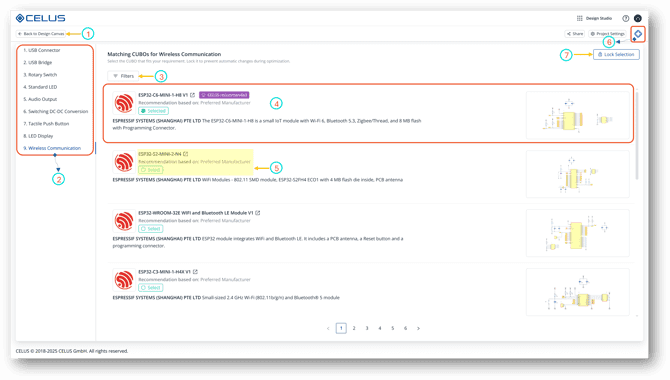
CUBO Results: 1) Back to Design Canvas 2) Functional Blocks Panel 3) CUBO™ Filters 4) CUBO™ Overview 5) Select the CUBO™ 6) Design Assistant 7) Lock the CUBO™
1) Back to Design Canvas
Click the Back to Design Canvas button to return to the Design Canvas
2) Functional Blocks Panel
On the left panel, Functional Blocks from the Design Canvas are listed by name and order. When a block is selected, the result list updates to show the relevant CUBOs, maintaining a one-to-one correspondence with the design hierarchy. The Functional Block menu displays only the ordering number and name of each block, exactly matching the order and names shown on the user's Design Canvas.
Expanded cards display complete summaries along with an enlarged schematic view. The results list is limited to 10 CUBOs per page, with navigation options available to browse additional pages for CUBO selection.

3) CUBO™ Filters
The CUBO filtering feature allows users to refine matching CUBOs based on functional and technical criteria. Instead of requiring predefined constraints during canvas creation, it enables a structured post-resolve evaluation. This makes the CUBO selection process more flexible and efficient.
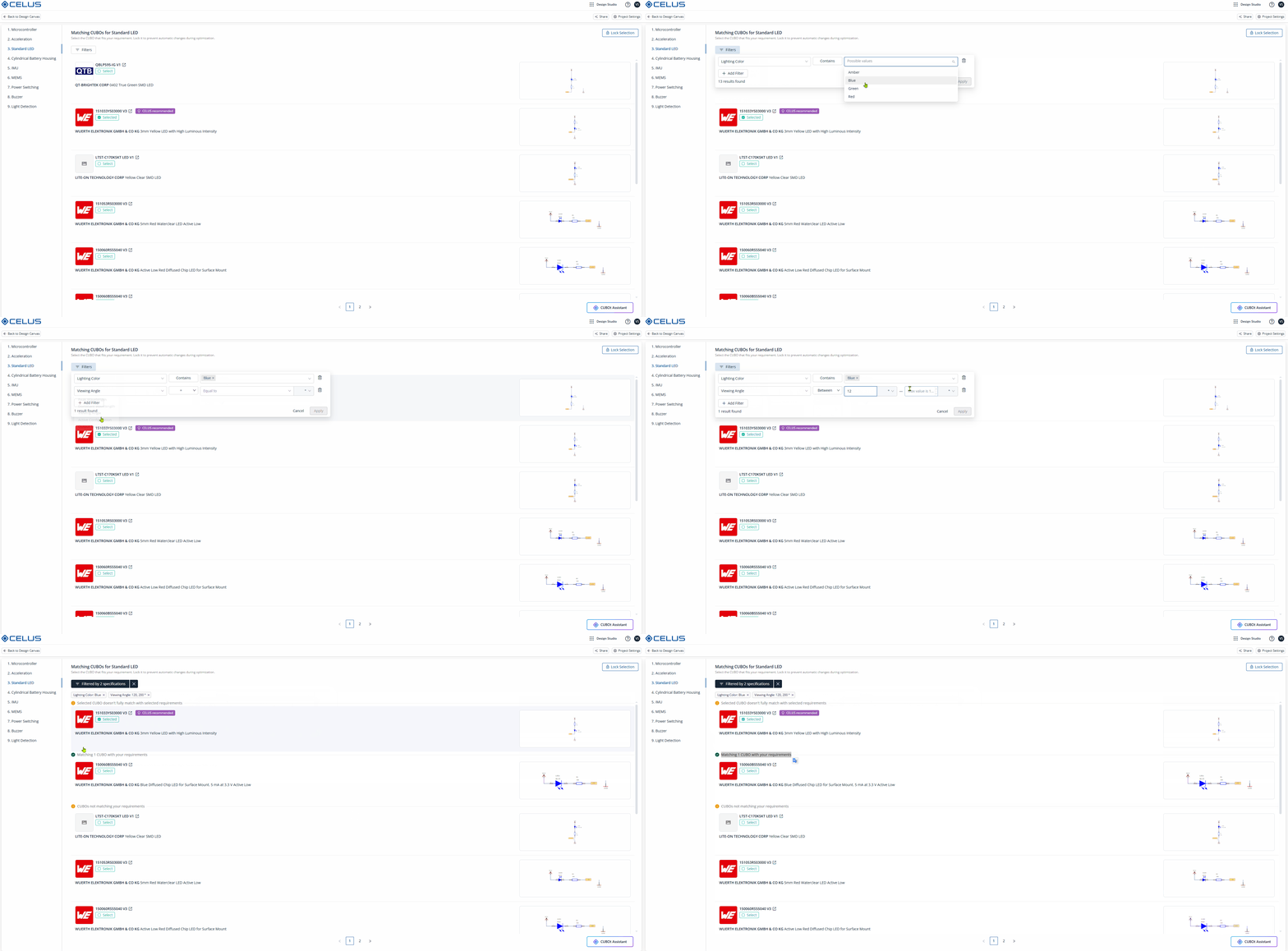
How It Works
This filter-first approach complements CELUS's functional-first design capture methodology. Engineers start by defining the system intent using high-level Functional Blocks, and the platform then presents a range of CUBOs that align with those definitions.
Once CUBOs are displayed, filters provide a powerful way to fine-tune results without altering the system architecture or restarting the process. This makes the design exploration iterative and adaptable to evolving requirements.
After resolving a Functional Block on the Design Canvas, CELUS shows a list of matching CUBOs. From this CUBO Results view, users can apply multiple filters to narrow their choices. For example, when searching for LEDs, filters can be set for:
Lighting color
Peak wavelength
Viewing angle
Filters can also be combined, allowing engineers to quickly pinpoint the most suitable CUBOs for their design needs, all without restarting the resolution process
4) CUBO™ Overview
When you select a Functional Block, the system displays a list of CUBOs that match the Functionality. Clicking on a CUBO™ gives you an overview, including Specifications linked to that CUBO™, and its associated Schematic.

CUBO™ Overview: Shows CUBOs,associated specifications and Schematics
In the CUBO Results page, the platform displays a list of CUBOs that best fit your project based on:
The functions and their related specifications
The interfaces connected to Functional Blocks
The specifications of those ports
Each CUBO™ result card includes:
Manufacturer logo, MPN (linked to full CUBO view), and a brief summary
Selection status (e.g., CELUS recommended or Selected by you)
Schematic preview with expandable detail
A Select button (or Selected/Locked status)
5) Select the CUBO™
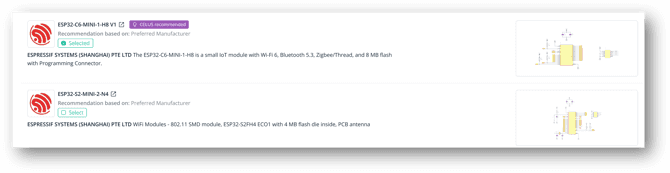
Selecting a CUBO™ means choosing an initial solution from the list of options that fit your functional block’s requirements. This step allows you to review and pick the best match for your project from the suggested CUBOs. Your selection is not final, you can change it later if you find a better fit or if your project requirements change. The selection remains flexible and can be updated as your project evolves. If you resolve or update the project, the selection might change based on change in constraints.
7) Design Assistant: Conversational Access to CUBO Solutions
The CELUS Design Assistant (DA) is an AI-powered conversational interface embedded directly within the CELUS Design Platform. Designed to enhance design autonomy, it empowers engineers to explore solutions in natural language, without relying solely on structured filters or parameter drop-downs.
Engineers can prompt the Design Assistant with functional queries like:
“Show me a CUBO under Wireless Communication that works with the Arduino IDE.”
In response, DA navigates the structured metadata behind the CUBOs, including supported programming environments, interfaces, power domains, and board-level constraints, to identify suitable matches. This not only speeds up the component discovery phase but also reinforces confidence in selection, especially for engineers working under time constraints or evaluating unfamiliar domains.
Design Assistant: natural language prompts
You can continue refining your queries in natural language. For instance:
“Which of these CUBOs would consume the least PCB area?”
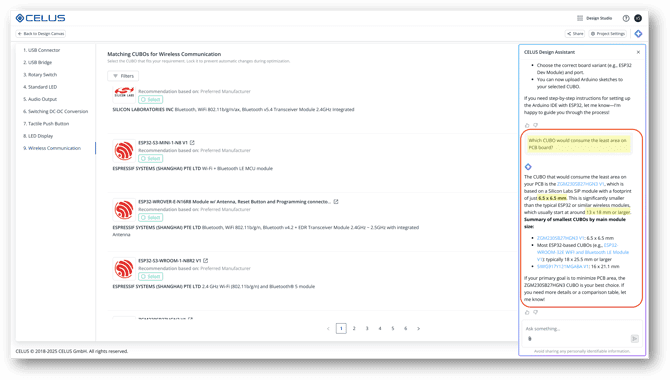
Ask follow-up questions to Design Assistant
Behind the scenes, the Design Assistant leverages the same validated content that powers the CELUS platform, including schematic, curated interface definitions, and component metadata.
7) Lock the CUBO™
Locking a CUBO™ makes your choice permanent, even if you update or resolve the project. If the CUBO™’s requirements, such as Functionality or Specifications, or the interfaces to its Functional Block change, and the locked CUBO™ no longer meets the constraints, resolving the project will result in an error.
If you encounter an error, you must either unlock the CUBO™ or adjust your requirements to resolve the project successfully. You can unlock the CUBO™ from the Select CUBO page or directly in the Design Canvas.
Locking Mechanism:
Users can lock only one CUBO per functional block.
Once a CUBO is locked, selection buttons for other CUBOs are disabled until the locked one is manually unlocked.
The Lock Selection button stays fixed at the top and changes to Selection Locked, displaying an unlock (X) icon as shown in the GIF below.

Lock or Unlock the selected CUBO™ selection
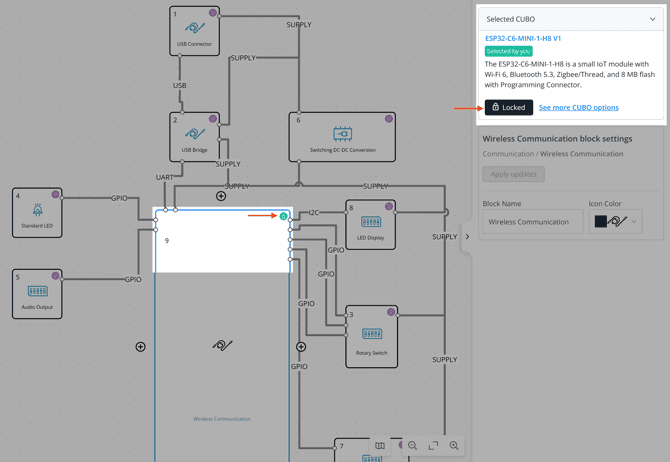
Locked CUBO™ view from Design Canvas
Important: Without locking, the CUBO™ will not be set as the final solution. Locking the CUBO™ ensures that the same CUBO™ is used throughout the project, similar to how Featured Projects are structured.
CUBO view in Library: See comprehensive details about the selected CUBO™
Each CUBO™ listed in the matched CUBO™ results page includes a View CUBO™ button. Clicking this button opens a new browser tab with comprehensive details about the selected CUBO™.
The first page provides:
A description of the CUBO™
The CUBO™ specifications
A schematic preview of the CUBO™
Access to the CUBOt AI Assistant
Each CUBO™ includes four main tabs:
Specifications: Displays all technical attributes.
CUBO™ BOM: Shows the Bill of Materials.
Additional Documents: Provides datasheets and supporting files.
Ports: Lists the input/output connections for integration.
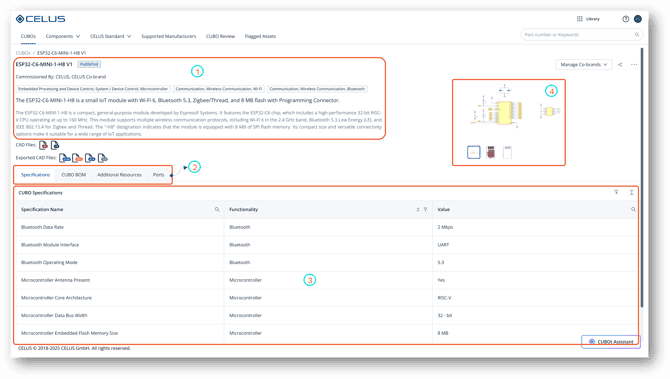
CUBO™ View in Library: 1) CUBO Functionality and Desciption 2) Navigation tabs - CUBO™ Specifications, CUBO™ BOM, CUBO™ Additional Documents, CUBO™ Ports 3) CUBO™ Specifications 4) Schematic and Layout Preview
For more information about CUBOs, refer to What is a CUBO™?
Stay informed: see all our latest articles and updates on the Home Page.
An intelligent electronics design platform that seamlessly automates component search, schematic generation, and EDA handover.
© Copyright 2026 CELUS · All rights reserved.